
Introduction
Experiencing distorted colors on your iPhone screen can be both frustrating and worrying. Whether your display is tinted, colors appear washed out, or you notice unusual hues, understanding the causes behind these issues and exploring solutions can lead to a quick fix. This comprehensive guide will walk you through everything from simple troubleshooting techniques to advanced solutions for resolving iPhone screen color problems.
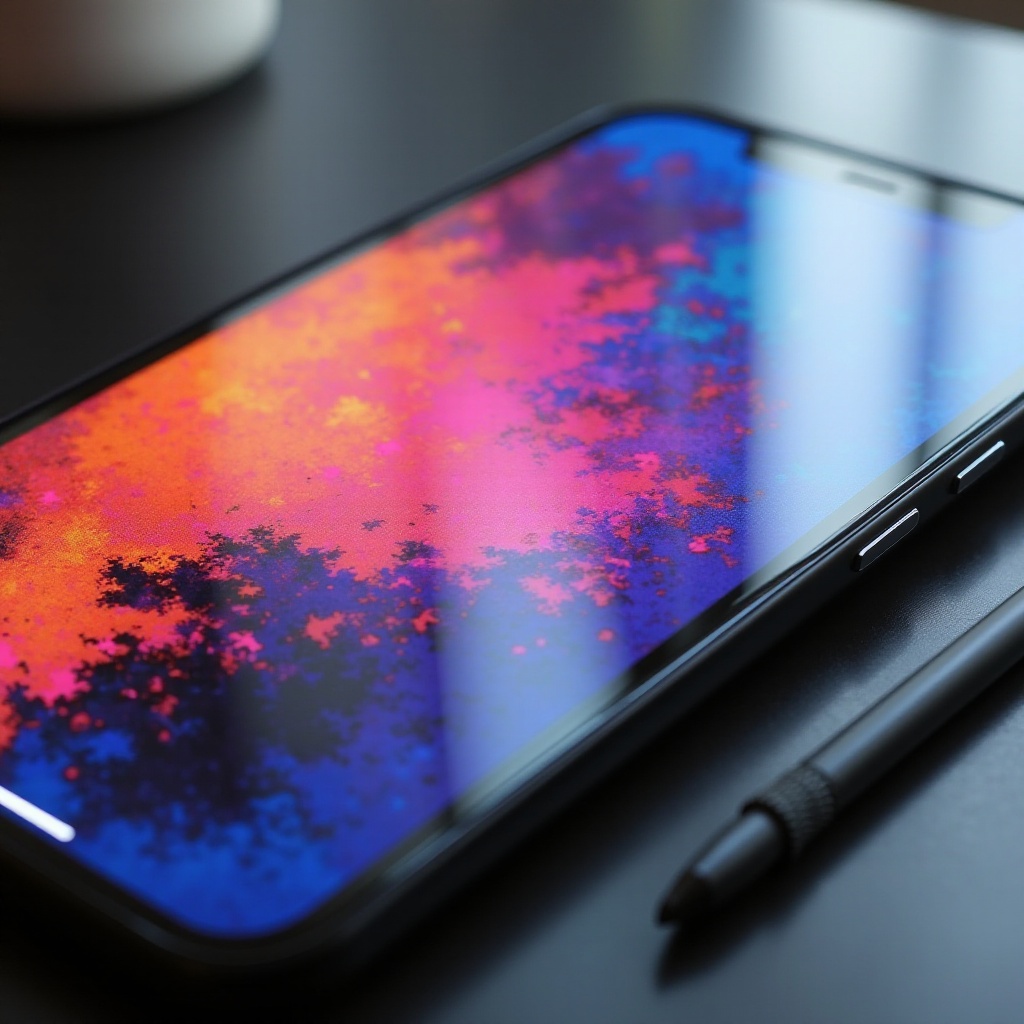
Understanding iPhone Screen Color Issues
Before diving into specific solutions, it’s important to recognize common symptoms and their causes. Identifying whether the issue is software or hardware-related can make your troubleshooting more effective.
Common Symptoms of Screen Color Problems
Typical symptoms may include unexpected tints like yellow or blue, washed-out colors, or unusually saturated display tones. Noticing these symptoms is the first step toward diagnosing the underlying cause of the issue.
Causes: Hardware vs. Software
Screen color issues can originate from hardware malfunctions, such as damage to the screen, or from software glitches, often following updates or misconfigurations in display settings. By differentiating between these two categories, you can better direct your troubleshooting efforts.
Quick Fixes for iPhone Screen Color Problems
Start with simple solutions that might immediately resolve your problem without further intervention. These quick fixes can often address minor glitches that cause screen color distortions.
Restart Your iPhone
A restart might seem too simple, but it’s an effective way to resolve many common issues. To restart your iPhone, hold the power button until the ‘slide to power off’ slider appears, turn it off, wait a few seconds, and then power it back on.
Check and Adjust Screen Brightness
Inaccurate brightness settings can sometimes lead to perceived color problems. Navigate to Settings > Display & Brightness and adjust the slider to see if it brings back the color accuracy.
If these quick fixes don’t resolve the problem, consider adjusting your iPhone’s display settings to restore color accuracy.
Advanced Display Settings Adjustments
Sometimes, color issues may require recalibrating display settings. Making these adjustments can correct settings disrupted by software updates or misconfigurations.
Calibrate Screen Colors
Calibrating your iPhone’s display can address some color inaccuracies. Go to Settings > Accessibility > Display & Text Size. Under this menu, explore options like Color Filters or Increase Contrast to modify how colors are displayed.
Utilizing True Tone and Night Shift
These features are designed to adjust the screen’s color balance according to lighting conditions, which can sometimes cause unexpected color changes. Check Settings > Display & Brightness. From there, toggle True Tone and Night Shift settings and observe any improvements.
Should the adjustments in display settings not yield satisfactory results, it may be time to consider possible software solutions.
Software Solutions to Explore
Software problems often underlie display issues, especially after new updates or changes. Updating or resetting your iPhone’s software can resolve glitches influencing screen color.
Update iOS to the Latest Version
Ensuring your device runs the latest software can promptly fix bugs: Go to Settings > General > Software Update to download and install any available updates.
Reset All Settings
This option restores default settings without erasing your data. Go to Settings > General > Reset, and select ‘Reset All Settings’. While it maintains your personal data, it modifies settings, which might fix persistent issues.
If the color issues persist even after software adjustments, they might be related to hardware malfunctions.
Hardware Troubleshooting Steps
When troubleshooting points to a hardware issue, consider inspecting your device for any visible damage or internal connection problems, especially if drops or impacts have occurred recently.
Inspecting for Physical Damage
Check your device for cracks or damage to the screen. Cases or screen protectors can also interfere, so ensure they aren’t the cause of the distortion.
Checking Internal Connections
For some models, ensure the internal cables remain connected. Seek professional assistance if unsure about inspecting the hardware manually.
If hardware issues are suspected, engaging professional support could be necessary to restore your iPhone’s display quality.
When to Seek Professional Help
When all else fails, professional assessment can provide clarity and repair options, potentially saving your device from further damage.
Understanding Warranty Options
Verify your warranty status to know your repair coverage. Visit the Apple Support website or contact their support line for detailed information on warranties or AppleCare+ coverage.
Visiting an Apple Store for Repairs
An Apple technician can diagnose and fix issues you cannot resolve alone. Make a Genius Bar appointment for a thorough evaluation. Be aware of possible diagnostic fees if your device is out of warranty.
Conclusion
Dealing with iPhone screen color problems requires patience and a systematic approach. Employing the advised fixes, from quick resets to engaging professionals, will optimize chances of restoring normal screen functionality. When troubleshooting doesn’t help, trust professional help to guide you toward a reliable solution.
Frequently Asked Questions
Why is my iPhone screen color distorted after an update?
Updates can disrupt settings temporarily. Resetting your display settings often resolves any unusual color contrasts post-update.
Can a screen protector cause color distortion on my iPhone?
Yes, poorly applied or low-quality protectors might alter the color appearance. Ensure proper installation and quality to avoid these issues.
How can I prevent screen color issues in the future?
Regular software updates, proper handling, and using quality accessories can help maintain the display quality and prevent color issues.