
Introduction
Screen burn, often referred to as screen ghosting, is a common issue for iPhone users. This display anomaly occurs when static images linger on the screen, resulting in a faint, persistent ghost of that image even when the display changes. But why does this phenomenon occur, and what measures can be taken to prevent it? This comprehensive guide dives into the root causes of screen burn on iPhones, provides practical measures to prevent it, and offers solutions to remedy this persistent problem.
What is Screen Burn?
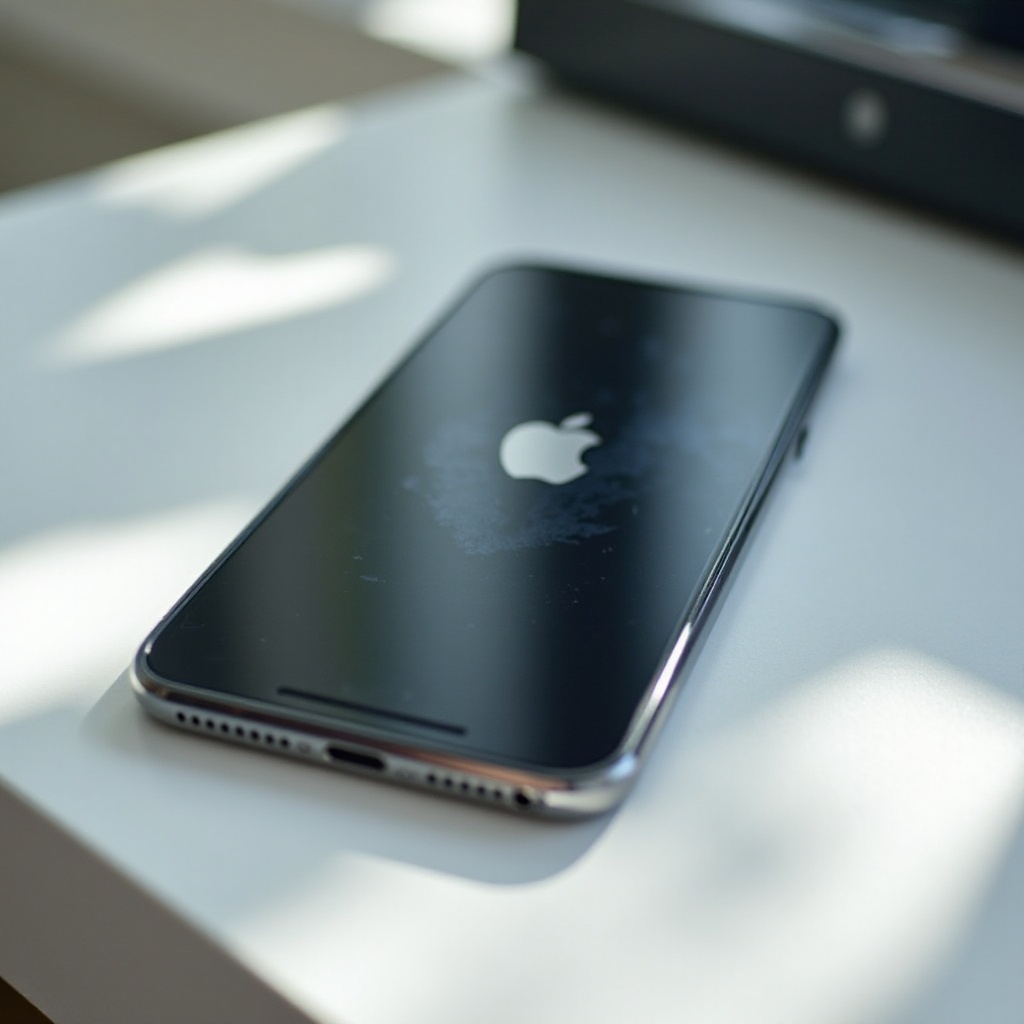
Screen burn negatively impacts the overall user experience on iPhones. Defined by persistent discoloration on screen areas, screen burn predominantly affects OLED displays, which are present in many iPhone models. These screens illuminate each pixel individually, leading to susceptibility to static image retention.
When an OLED screen displays a static image for too long, the affected pixels can degrade, losing brightness and embedding a faint image silhouette. Static elements, such as home bar icons or navigation bars, are the primary culprits. This understanding of what screen burn entails is crucial for identifying causes and implementing preventive actions.
Causes of Screen Burn on iPhones
Identifying the root causes of screen burn is the first step toward prevention:
-
Prolonged Static Images: Continuous display of static images or screen elements leads to screen burn. Apps with unchanging UI elements, such as certain news apps or games, can be the main contributors.
-
High Brightness Settings: Regular use of maximum brightness can accelerate pixel degradation, making the screen more prone to burn.
-
Other Contributing Factors: Inferior screen protectors or cases that trap heat, alongside excessive usage without allowing the screen to rest, can worsen screen burn issues.
By understanding these causes, iPhone users can make better decisions to safeguard their device. Moving forward, knowing how to prevent these causes can significantly reduce screen burn risk.
Identifying Screen Burn on Your iPhone
Early detection of screen burn is essential for effective intervention. Recognizing the symptoms ensures timely remedies:
-
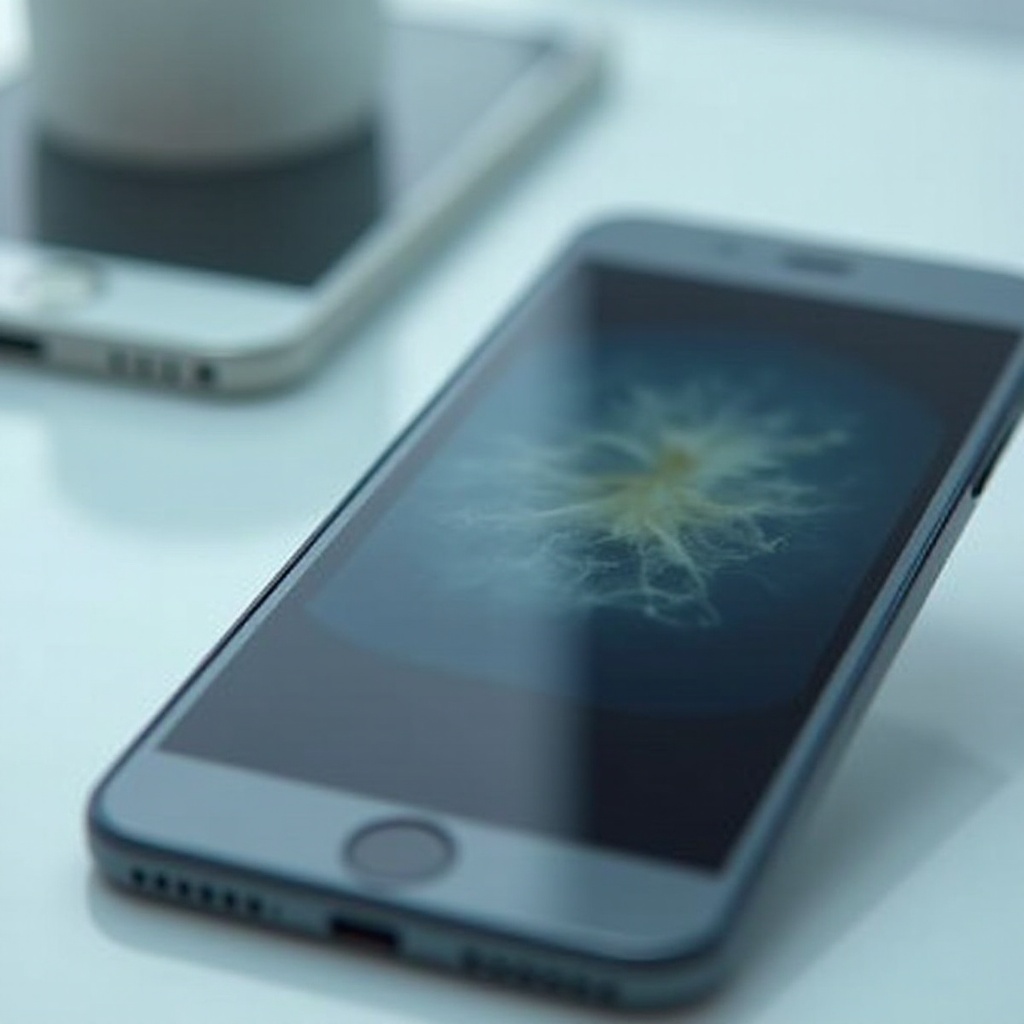
Symptoms and Signs: Persistent ghost images that remain visible across different apps signal screen burn. Adjust your display’s brightness to observe any residual shadows or discolorations.
-
Differentiating from Other Screen Issues: Screen burn differs from other issues like dead pixels or backlight bleed. While dead pixels appear as non-lighting dots, backlight bleed manifests as irregular bright spots.
With this understanding, users can better diagnose screen health issues and pinpoint the best solutions.
How to Prevent Screen Burn on iPhones
Preventing screen burn involves several proactive strategies:
-
Adjusting Brightness Settings: Keep your display brightness to a moderate level to reduce pixel stress. Utilize automatic brightness adjustments to help.
-
Using Dynamic Wallpapers and Screensavers: Opt for changing wallpapers and screensavers, preventing static images from imprinting.
-
Implementing Auto-Lock and Screen Timeout: Configure your iPhone to lock automatically when idle. This stops prolonged display of static images.
Incorporating these practices into daily usage can help you minimize the risk of screen burn and enjoy your iPhone’s clear display longer.
Solutions and Fixes for Screen Burn
If screen burn has already affected your iPhone, several remedies can help restore your screen:
-
Temporary Software Adjustments: Various apps in the App Store can aid screen burn mitigation by cycling colors, offering temporary relief.
-
Professional Repair Options: For significant issues, professional repair might be necessary. In extreme cases, screen replacement could be required.
-
DIY Tricks and Tips: Home remedies such as pixel refresh tools or gently massaging the screen may provide slight improvements.
By tackling screen burn head-on, users can maintain the quality and longevity of their iPhone displays.
Apple’s Approach to Screen Burn
Apple acknowledges the screen burn problem and provides support through various initiatives:
-
Warranty and Support Information: Check if your device is under warranty. Apple might offer screen repairs if the damage qualifies under warranty.
-
iOS Features to Mitigate the Issue: iOS updates often include features designed to minimize screen burn risk, such as auto-brightness adjustments and True Tone displays.
Apple’s ongoing updates and support offer users reassurance and assistance in maintaining their iPhone’s display integrity.
Conclusion
Addressing iPhone screen burn involves understanding its causes, implementing preventive strategies, and exploring applicable solutions. By practicing mindful consumption and caring for your device, you can minimize the risk of screen burn. These proactive steps ensure the preservation of your iPhone’s vibrant display.
Frequently Asked Questions
What is the difference between screen burn and dead pixels?
Screen burn refers to ghost images on your display, while dead pixels are specific points that do not light up, appearing as black or white dots.
Can screen burn get worse over time?
Yes, screen burn can progress as pixels degrade further with extended exposure to static images and high brightness, worsening the problem.
Is screen burn covered under Apple’s warranty in 2024?
Apple’s warranty policies may cover screen burn damage, but it is best to verify with Apple Support for specific terms and coverage.