
Introduction
Achieving perfect audio settings on your Hisense TV can enhance your home entertainment. Whether you’re enjoying a thrilling movie, watching a live sports event, or immersed in the latest video game, optimized sound settings will make every experience more engaging. In this guide, we’ll explore how to adjust and maximize your Hisense TV’s audio settings to suit all types of content.
Understanding Hisense TV Audio Features
Hisense TVs are equipped with various audio modes designed to enhance your listening experience. Knowing how these features work will allow you to tailor the sound to your liking:
-
Standard Mode: Provides a balanced audio setting for regular TV viewing.
-
Theater Mode: Increases bass and surround sound, ideal for watching movies.
-
Speech Mode: Enhances dialogue, making it clearer and more distinct, perfect for news or talk shows.
-
Music Mode: Provides a balanced soundstage suitable for enjoying music tracks.
Understanding and using these audio features will pave the way for further customization in achieving optimal sound quality.
Navigating the Audio Settings Menu
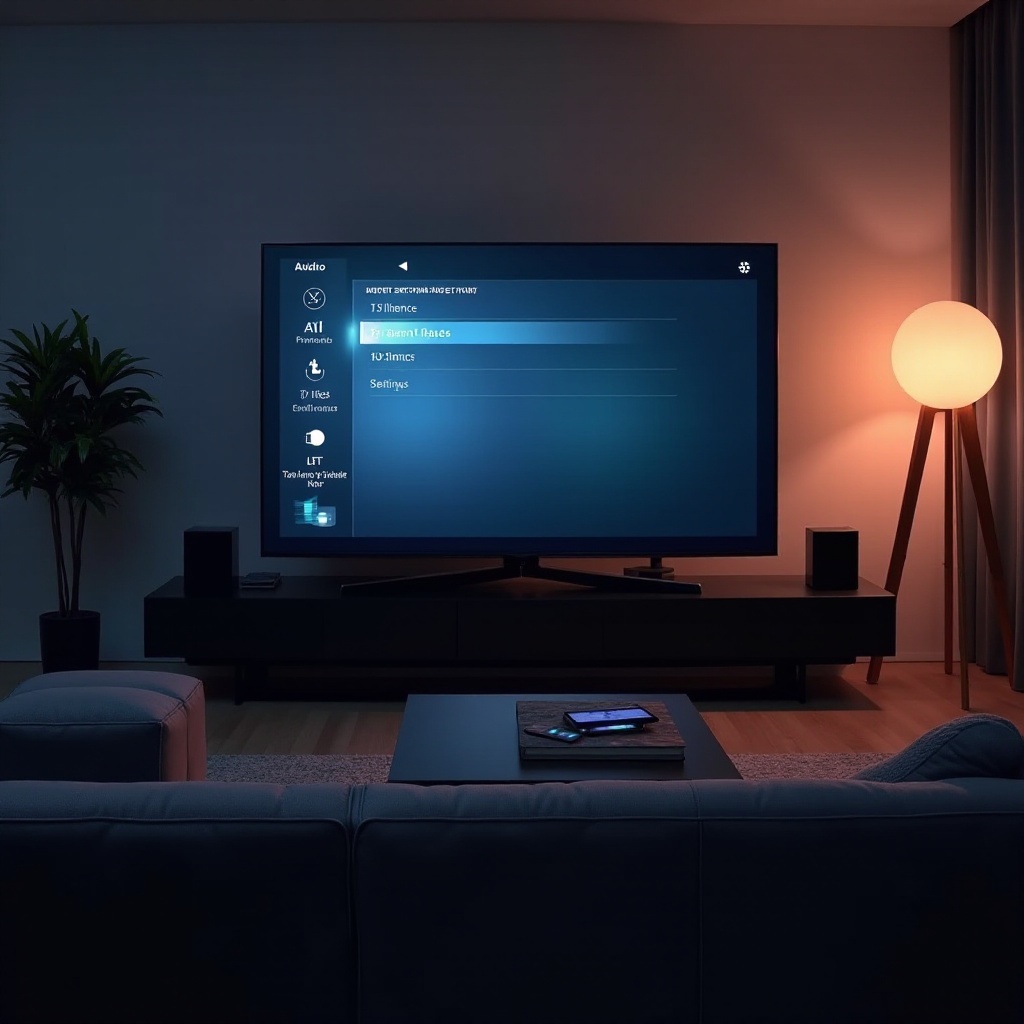
Adjusting your Hisense TV’s audio settings is straightforward. Here’s a quick guide to help you get started on customizing your sound preferences:
- Press the ‘Menu’ button on your remote control.
- Go to ‘Settings,’ then select ‘Audio.
- Within the settings, you’ll find different audio modes and options.
Experiment with each setting to find the perfect balance. This will help you quickly navigate back to menus when you need to change settings for different types of content.
Customizing Audio for Various Content Types
The audio experience greatly varies depending on whether you’re watching a movie, a live sports broadcast, or playing video games. Here’s how to fine-tune your settings for each:
Optimizing for Movies
To enhance your movie-watching experience:
- Set the audio mode to Theater.
- Adjust Bass and Treble to your preferences for deep, rich sound.
Sports and Live Events Settings
For an immersive sports experience:
- Choose Sports Mode if available, or amplify Midrange frequencies to make crowd noise and commentary more vivid.
- Use Noise Reduction features to minimize background distractions.
Gaming Audio Enhancements
For a captivating gaming experience:
- Select Game Mode or manually enable Low Latency to ensure audio syncs with visuals.
- Opt for enhanced Surround Sound to immerse yourself in the game world.
These tailored adjustments allow you to experience the full impact of your media content.
Utilizing Advanced Audio Features
To unlock the full potential of your Hisense TV, utilize its advanced audio features. Here are key features to consider:
- Dolby Audio: Activate this feature for a more immersive and multidimensional audio experience.
- DTS Support: Make sure settings are configured to support DTS audio for content that allows for dynamic and robust sound quality.
With these advanced settings, you can bring high-quality sound to every type of content you enjoy.
Connecting External Audio Devices
External equipment like soundbars or speakers can significantly enhance your TV’s sound. Here’s how to connect them seamlessly:
- Soundbars: Connect via HDMI ARC or Optical cables for an enriched audio experience.
- Bluetooth Speakers: Easily pair these devices through your TV’s Bluetooth settings for convenient, wireless sound.
By integrating external devices, you can maximize sound quality and create a customized, immersive viewing environment.
Troubleshooting Common Audio Issues
Occasionally, audio problems might arise. Here’s how to troubleshoot common issues effectively:
- No Sound: Verify volume settings, ensure all cables are connected, and try restarting the TV.
- Audio Out of Sync: Adjust the ‘Audio Delay’ in the settings to synchronize sound with visuals.
- Distorted Sound: Revisit your audio modes and ensure they match the content type being viewed.
Regular maintenance of these settings will ensure that your TV provides consistent, high-quality audio.
Conclusion
By making the most of your Hisense TV’s audio settings, you enhance your entire home entertainment experience. From adjusting basic modes to advanced feature utilization, each change brings you closer to perfect sound. Now, you are equipped to tailor your TV’s audio setup to amplify whatever you’re watching, providing a more satisfying viewing experience.
Frequently Asked Questions
How can I improve the sound quality on my Hisense TV?
Improve your Hisense TV’s sound by adjusting audio modes, enabling advanced features like Dolby Audio, and connecting soundbars for better audio performance.
What should I do if my Hisense TV has no sound?
Check volume settings, ensure cables are secure, and restart the TV. If issues persist, reset the audio settings to factory defaults.
Can I connect my Bluetooth speaker to my Hisense TV?
Yes, you can connect a Bluetooth speaker by accessing the Bluetooth settings in the menu and pairing your speaker for wireless audio.