
Introduction
When the Steam Deck’s touch screen isn’t working, it can be an incredibly frustrating experience, disrupting your gaming flow. This comprehensive guide offers practical and effective troubleshooting solutions to restore your device’s touch screen functionality. Understanding the root causes, followed by step-by-step instructions, will help you get back to enjoying seamless gameplay.
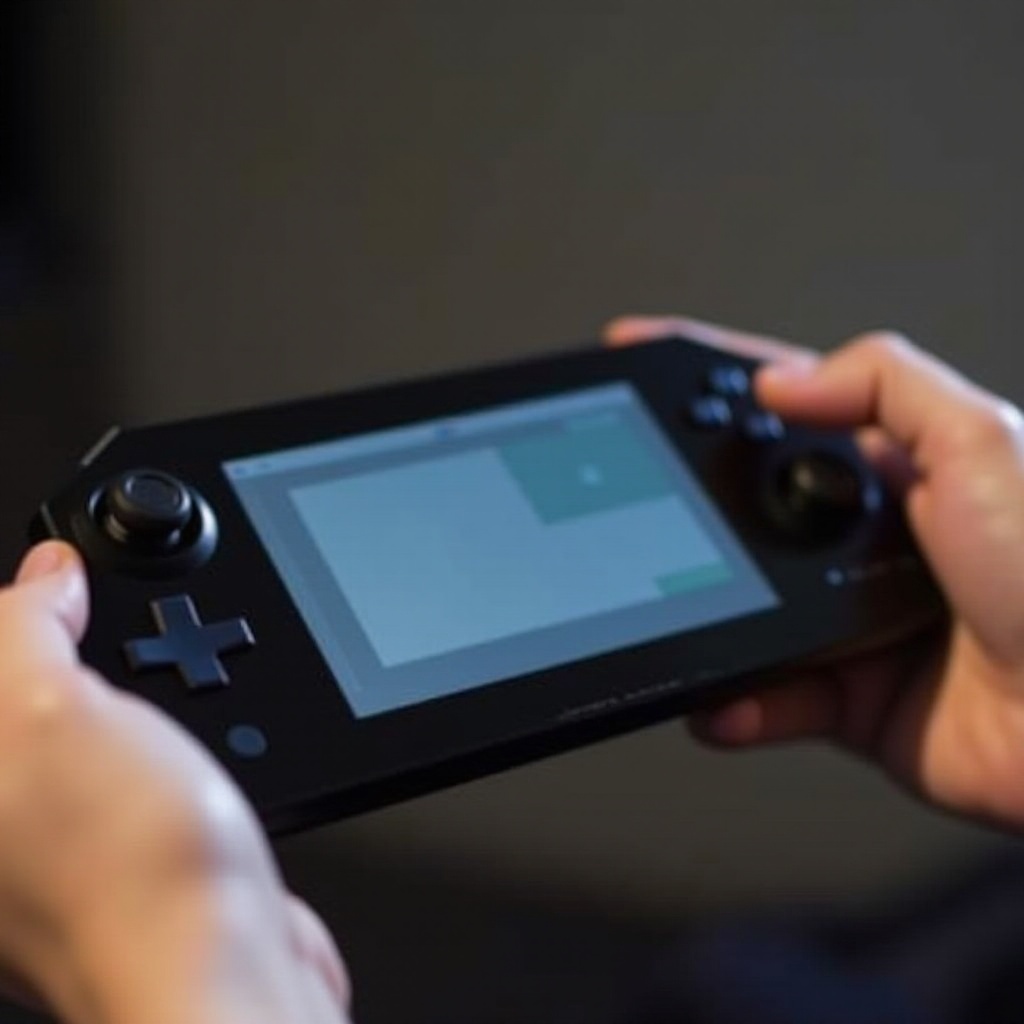
Identifying the Problem
To troubleshoot the touch screen, you first need to identify the problem. Unresponsiveness could be due to a variety of factors including software glitches, hardware issues, or even something as simple as a dirty screen.
Symptoms often include:
– No response to touch gestures
– Delayed or erratic reactions
– Specific regions of the screen not working
By pinpointing these issues, you can better target the solution, moving swiftly into the first steps of troubleshooting: quick fixes.

Quick Fixes
Start with the basics to rule out simple problems:
- Perform a Soft Reset: Press and hold the power button for 10 seconds to reset the device. This can resolve minor glitches.
- Check Touch Screen Settings: Go to ‘Settings’ and verify that touch screen functionalities are enabled.
Often, these straightforward steps can clear up minor issues, but if the problem persists, further cleaning and maintenance may be necessary.
Cleaning and Maintenance
Regular cleaning can prevent operating issues. A dirty screen can undermine the Steam Deck’s performance, making cleaning crucial.
- Safe Cleaning: Use a microfiber cloth with a small amount of distilled water. Gently wipe the screen to remove dust and grime without damaging the device.
- Routine Maintenance: Cleaning weekly can prevent dust buildup that interferes with the touch sensors.
A clean device is less likely to encounter problems, but if issues persist, it might require software-related solutions.
Software Solutions
Software issues can often cause your touch screen to stop working. Ensuring your device is up-to-date can solve many problems.
- Check for Updates: Go to ‘Settings’, then ‘System’, and check for device updates. Updating the system can fix bugs affecting touch screen responsiveness.
- Recalibration: Navigate to ‘Settings’, select ‘Devices’, then ‘Calibrate Touch Screen’. Follow instructions to restore accuracy and functionality.
These software solutions aim to eliminate glitches and improve performance, but more severe issues might need advanced troubleshooting.
Advanced Troubleshooting
Persistent problems may require more in-depth approaches:
- Entering Safe Mode: Power off the device, then restart while holding the power and volume down buttons. Safe Mode can diagnose software issues.
- Factory Reset: If other solutions fail, a factory reset could help. Navigate to ‘Settings’ > ‘System’ > ‘Reset Options’. This will erase personal data, so back up needed files.
If these steps don’t resolve your issues, professional repair might be the next step.
Professional Repair Options
When all else fails, professional help is available.
- Time for Expert Help: If there’s hardware damage or persistent software issues, professional repairs may be required.
- Reaching Steam Support: Contact support through the Steam official website, providing detailed information about your issue for targeted solutions.
After exploring these options, you should be well-equipped to decide on repair or replacement.
Conclusion
Solving touch screen problems on your Steam Deck can seem daunting, but by systematically working through identification, quick fixes, cleaning, software and hardware solutions, you can often resolve these issues effectively. Prioritizing regular maintenance and not hesitating to reach out for professional support when needed will ensure a better gaming experience.
Frequently Asked Questions
Why is my Steam Deck’s touch screen unresponsive?
Unresponsiveness may stem from software glitches, dirt accumulation, or hardware damage. Identifying the issue aids in finding an effective fix.
How can I recalibrate my Steam Deck’s touch screen?
Recalibrate by going to ‘Settings’ > ‘Devices’ > ‘Calibrate Touch Screen’ and follow the on-screen instructions to enhance touch accuracy.
Is it worth repairing my Steam Deck if the touch screen doesn’t work?
If within warranty or repair costs are reasonable, fixing the touch screen is worthwhile to restore full device functionality.